Search Blog

Showing posts with label BloggerTube. Show all posts

Bloggertube template for Blogger Blog Free - BloggerTube V3.0.3

Bloggertube template for a Blogger Blog - BloggerTube V3.0.3 is a blogger template made purely for blogs that contain video content. Download the template using the following link:

Click Here to Download BloggerTube V3.0.3 Template

Keep in mind that the procedure I'm going to write will only be for a Blogger blog, not other platforms. As variations of the template have shown up everywhere. This post is purely for blogger.com blogs.

Also Read: What is Affiliate Marketing? 


Procedure

  • After Downloading the template go to blogger.com.
  • Click on "Template" and then click on "Backup/Restore" as shown in figure.


  • In the opening menu, click the "Download Theme" button to save your current theme, just in case something goes wrong, you can upload your current theme to get all things normal.
  • Then click the "Choose File" button to upload the template file.


  • After clicking on Choose file. A pop-up window will appear, choose the file downloaded from the link above in the pop-up screen and upload it. 
  • After uploading it click on "Edit HTML" as shown in figure.


  • Press Control key and "F" key at the same time i.e. CTRL+F to engage search of your internet browser.
  • Firstly search for the term "pub-" including the hyphen sign, without the quotation marks"
  • OR
  • Search for 6077535006898197, you will find 8 or 4 searches for these two words, you only need to search for one of them. 
  • Replace the whole adsense ad code with your Adsense parsed ad code of the same ad size in the ad code already present. If your Publisher ID is "ca-pub-xxxxxxxxxx" then "xxxxxxxxxx" is your publisher id. "xxxxxxxxxx" would obviously be some numbers.
  • Then search for "youblogslogo" and replace it with the link of your blog's logo, that you have created for your blog.
  • Then search for "yourblogsname" and replace it with your blog's Name, i.e. the title of the blog.
  • Then search for " page 1", "page 2" and "about" and replace them with your blog's page names and their URLs in their respective "href=" tags.
  • After that simply press "Save Theme" and your BloggerTube V3.0.3 template is ready use , and your blog is now ready for posting videos.


Don't forget to follow my blog Ali Khan Blogs on facebook Twitter.
Share:

Download Bloggertube version 3.0.3 Video Blog Template for Blogger

This is the latest version of the bloggertube template .For making a video blog but only for blogger users read "Perfect video template for Adsense users" to know how to use this template.

Click here to Download Bloggertube version 3.0.3

I hope this article helps you, don't forget to follow my blog Ali Khan Blogs on facebook Twitter.
Share:

Bloggertube Video Blog Template Explained

If you have used the Bloggertube video blog template of blogger then you would certainly have noticed there being a lot of problems using it like I had while creating my own video blog. The main big problems were:
  • You had to put the parsed adsense codes by yourself into the source HTML of the blog yourself. It means only selective places could be used for placing Adsense ads.
  • You could add only 1 video per post like if I had to place a video of a full-length match of about 9 hours, it would take almost 90 videos for me on youtube to upload the whole match.
  • You could add text only within the [Starttext] & [Endtext] tags and even if I made a slight mistake with these tags, either the text would not be displayed or there would be some error.
  • Apart from these there are numerous problems that a person faces when linking a youtube video to his blog that I resolved in my post called "Linking a Youtube video to a Bloggertube blog."

Bloggertube Video Blog Template Explained

So these all create a lot of problems for the users using bloggertube in there video blogs, so I just wanted to advise all the people, using Bloggertube template in there video blogs and thinking that it is the only video blogging solution, that to use a custom blog template of blogger like a simple template in black colour in which you can:
  • Embed videos from all video hosting websites instead of linking them to your blog. (Its the same as linking a youtube video to your blog but has a wider approach. Because other video hosting websites like daily motion, Hulu and youtube etc. allow embedding there videos)
  • You can add text simply anywhere to your blog like a simple blog post.
  • The third big thing is that you can add adsense easily anywhere just by clicking "Add a Gadget" option in the design of the blog at the Design tab.

Now if you have a video whose embed code is like
<iframe width="425" height="349" src="http://www.youtube.com/embed/GJ7SUUXM52c" frameborder="0" allowfullscreen></iframe>
Simply copy its embed code and go to your blog's posting option, click on "New Post" and click "Edit HTML" tab above the post editing body.

Paste the code here and click on "Compose" tab just next to the "Edit HTML" tab. You will see a box having a play sign in between (in some cases the preview of how the video looks will be shown). You can edit the size of the video by clicking on it and choosing an appropriate size on the opening tab like small, medium, large & X-large. 

You can also place it in the desired place of your blog post. If however the blog does not display the video and show the text embed, simply edit that post and click on "Post Options" below the labels option below your blog post editing area. In "Compose Settings" chose the "Interpret typed HTML" option and your video will be displayed immediately.

If you want to check the success of it check out akschools.blogspot.com where there are over 50 videos and the result is as same as bloggertube, even better though like you can place the sidebar on right even and much more can be done in the "Template Design".

Don't forget to follow my blog Ali Khan Blogs on facebook at Akblogspk.
Share:

Blogger's BloggerTube Recent Videos/Latest Posts Widget

<script style="text/javascript" src="http://blogergadgets.googlecode.com/files/dante.js"></script>
<script style="text/javascript">
var numposts = 5;
var showpostthumbnails = true;
var displaymore = true;
var displayseparator = true;
var showcommentnum = true;
var showpostdate = true;
var showpostsummary = false;
var numchars = 50;
</script>
<script src="/feeds/posts/default?orderby=published&alt=json-in-script&callback=showrecentpostswiththumbs"></script>
<div class="clear"/></div>
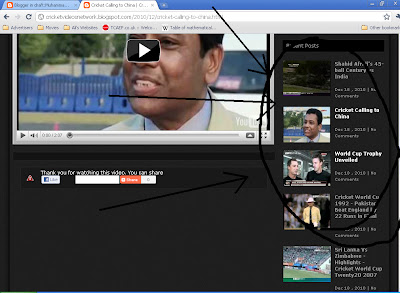
This is the code that you need to put in your BloggerTube blog's sidebar. It will look like this:


Simply select all of the bold code & copy it. Then go to your Bloggertube blog's design page and click on "Add a Gadget" on top of the sidebar column or any other place you want to add this widget in. Then click on "HTML/Javascript" option which is precisely on the 7th option & paste this code in the body portion. Name the widget as "Recent Posts" or "Latest Videos" etc. & click "Save" & and then again click Save Template on top of the page. Your Recent Videos Widget is ready and working.
Share:

Adding Youtube Video to Bloggertube Blog

Adding Youtube Video to Bloggertube Blog is an easy task. Bloggertube is a very helpful blogger template, it was once a "video template" that supported youtube videos and allowed blogs to share video content easily. The theme needs better treatment from its developers. After a few good years, the theme started showing poor performance and eventually died out. Still you can use it to share youtube videos on your blog.

Learn Adding Youtube Video to Bloggertube Blog

The basic need of Adding Youtube Video to Bloggertube Blog is an endofvid tag. Simply copy a youtube video's URL, i.e. address and copy it in a text editor like notepad. Now if your video address is of this form "https://www.youtube.com/watch?v=xxxxxxxxxx", if this is the form of the video's address then you can paste it into your blog's post and end it with "endofvid" tag.
For example, "http://www.youtube.com/watch?v=xxxxxxxxxxendofvid", this will place the video of the address http://www.youtube.com/watch?v=xxxxxxxxxx to your blog.

Adding a Youtube Video to Bloggertube Blog

If however the video address is of this type:

http://www.youtube.com/watch?v=xxxxxxxxx&feature=mfu_in_order&playnext=1&videos=iOYgh9ksgZA

Then first paste the address in the notepad and erase all the text uptill the first & sign and leave the text behind it as it is. That will be the real address of the video. In this case the real address of the video is http://www.youtube.com/watch?v=xxxxxxxxx. So in any case remove the part from the & sign till the end and then post it in a post like

http://www.youtube.com/watch?v=xxxxxxxxxendofvid

There should be no space between the address of the video and the "endofvid" tag.

Remember to remove the link of the video, i.e. your video's URL should be in text form,

Adding Text Description to Bloggertube Post

If you want to add text, you can use the [starttext] and [endtext] tag. Like for this video you can start writing below the endofvid tag like:

http://www.youtube.com/watch?v=xxxxxxxxxendofvid
[starttext] This is a football video [endtext]

This would be the text appearing below the post.
In order to make your video viewable by people in a BloggerTube blog, you must first upload your video to Youtube and copy the URL from it.

I hope this article helps you, I will be writing more on these sorts of articles and don't forget to follow my blog AKBlogs on facebook at Akblogspk.

Share: